
Configure ALB
ALB has been deprecated. Please use the ingress-nginx-operator or envoy-gateway instead.
TOC
ALB
ALB is a custom resource that represents a load balancer. The alb-operator, which is embedded by default in all clusters, watches for create/update/delete operations on ALB resources and creates corresponding deployments and services in response.
For each ALB, a corresponding Deployment watches all Frontends and Rules attached to that ALB and routes requests to backends based on those configurations.
Prerequisites
The high availability of the Load Balancer requires a VIP. Please refer to Configure VIP.
Configure ALB
There are three parts to an ALB configuration.
Resource-Related Configuration
resource related field describes the deployment configuration for the alb.
Networking Configuration
Networking fields describe how to access the ALB. For example, in host mode, alb will use hostnetwork, and you can access the ALB via the node IP.
project configuration
Adding an ALB to a project means:
- In the web UI, only users in the given project can find and configure this ALB.
- This ALB will handle ingress resources belonging to this project. Please refer to ingress-sync.
- In the web UI, rules created in project X cannot be found or configured under project Y.
If you enable port project and assign a port range to a project, this means:
- You cannot create ports that do not belong to the port range assigned to the project.
tweak configuration
there are some global config which can be tweaked in alb cr.
Operation On ALB
Creating
Using the web console.
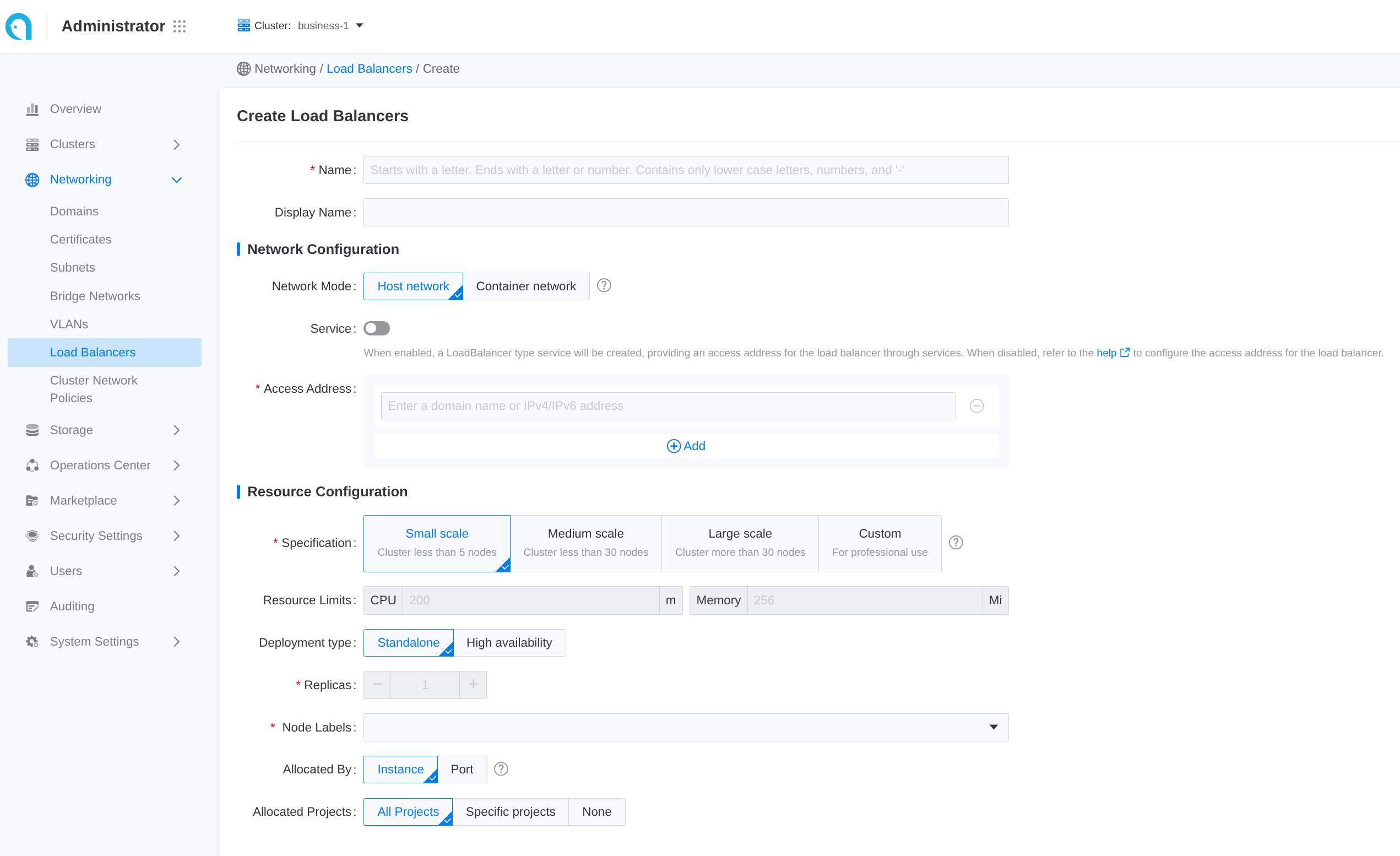 Some common configuration is exposed in the web UI. Follow these steps to create a load balancer:
- Navigate to Administrator.
- In the left sidebar, click on Network Management > Load Balancer.
- Click on Create Load Balancer.
Each input item in the web UI corresponds to a field of the CR:
Using the CLI.
Update
Using the web console
Updating the load balancer will cause a service interruption for 3 to 5 minutes. Please choose an appropriate time for this operation!
-
Enter Administrator.
-
In the left navigation bar, click Network Management > Load Balancer.
-
Click ⋮ > Update.
-
Update the network and resource configuration as needed.
-
Please set specifications reasonably according to business needs. You can also refer to the relevant How to properly allocate CPU and memory resources for guidance.
-
Internal routing only supports updating from Disabled state to Enabled state.
-
-
Click Update.
Delete
Using the web console
After deleting the load balancer, the associated ports and rules will also be deleted and cannot be restored.
-
Enter Administrator.
-
In the left navigation bar, click Network Management > Load Balancer.
-
Click ⋮ > Delete, and confirm.
Using the CLI
Frontend
Frontend is a custom resource that defines the listener port and protocol for an ALB. Supported protocols: L7 (http|https|grpc|grpcs) and L4 (tcp|udp).
- In L4 Proxy use frontend to configure backend service directly.
- In L7 Proxy use frontend to configure listener ports, and use rule to configure backend service.
If you need to add an HTTPS listener port, you should also contact the administrator to assign a TLS certificate to the current project for encryption.
Prerequisites
Create a ALB first.
Configure Frontend
-
alb label: Required, indicate the ALB instance to which this
Frontendbelongs to. -
frontend name: Format as
$alb_name-$port. -
port: which port which listen on.
-
protocol: what protocol this port uses.
- L7 protocol https|http|grpcs|grpc and L4 protocol tcp|udp.
- When selecting HTTPS, a certificate must be added; adding a certificate is optional for the gRPC protocol.
- When selecting the gRPC protocol, the backend protocol defaults to gRPC, which does not support session persistence.If a certificate is set for the gRPC protocol, the load balancer will unload the gRPC certificate and forward the unencrypted gRPC traffic to the backend service.
- If using a Google GKE cluster, a load balancer of the same container network type cannot have both TCP and UDP listener protocols simultaneously.
-
certificate_name: for grpcs and https protocol which the default cert used, Format as
$secret_ns/$secret_name. -
backendProtocol: what protocol the backend service uses.
-
Default
serviceGroup:- L4 proxy: required. ALB forwards traffic to the default service group directly.
- L7 proxy: optional. ALB first matches Rules on this Frontend; if none match, it falls back to the default
serviceGroup.
Operation On Frontend
Creating
using the web console
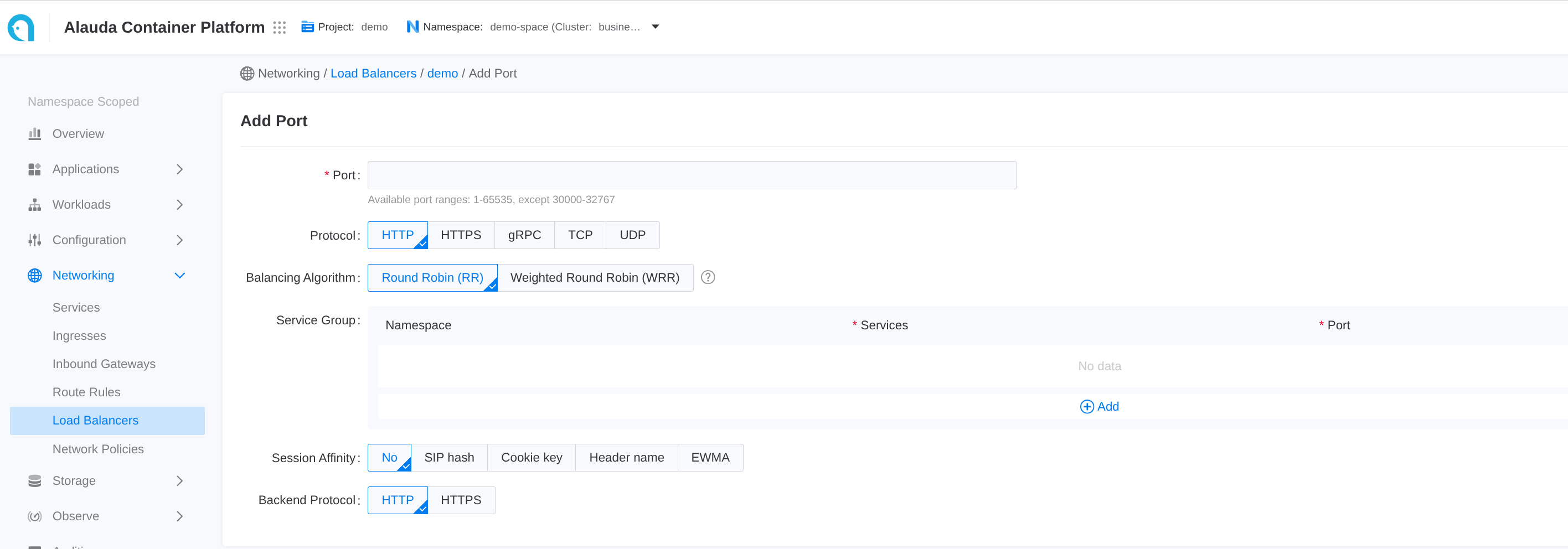
-
Go to Container Platform.
-
In the left navigation bar, click Network > Load Balancing.
-
Click the name of the load balancer to enter the details page.
-
Click Add Port.
Each input item on the web UI corresponds to a field of the CR
using the CLI
Subsequent Actions
For traffic from HTTP, gRPC, and HTTPS ports, in addition to the default internal routing group, you can set more varied back-end service matching rules. The load balancer will initially match the corresponding backend service according to the set rules; if the rule match fails, it will then match the backend services corresponding to the aforementioned internal routing group.
Related Operations
You can click the ⋮ icon on the right side of the list page or click Actions in the upper right corner of the details page to update the default route or delete the listener port as needed.
If the resource allocation method of the load balancer is Port, only administrators can delete the related listener ports in the Administrator view.
Rule
Rule is a Custom Resource(CR) that defines how incoming requests are matched and processed by the ALB.
Ingresses handled by ALB can be auto-translated to rules.
Prerequisites
Here is a demo rule to give you a quick first impression of how to use rules.
rule must be attached to a frontend and alb via label.
- Required, indicate the
Frontendto which this rule belongs. - Required, indicate the ALB to which this rule belongs.
- backendProtocol
- certificate_name
- dslx
- The lower the number, the higher the priority.
- serviceGroup
match request with dslx and priority
dslx
DSLX is a domain-specific language used to describe the matching criteria. For example, the rule below matches a request that satisfies all the following criteria:
- url starts with /app-a or /app-b
- method is post
- url param's group is vip
- host is *.app.com
- header's location is east-1 or east-2
- has a cookie name is uid
- source IPs come from 1.1.1.1-1.1.1.100
priority
Priority is an integer ranging from 0 to 10, where lower values indicate higher priority. To configure the priority of a rule in ingress, you can use the following annotation format:
For rules, simply set the priority directly in .spec.priority using an integer value.
Action
After a request matches a rule, you can apply the following actions to the request
Backend
backend protocol
By default, the backend protocol is set to HTTP. If you want to use TLS re-encryption, you can configure it as HTTPS.
Service Group and Session Affinity Policy
You can configure one or more services within a rule.
By default, the ALB uses a round-robin (RR) algorithm to distribute requests among backend services. However, you can assign weights to individual services or choose a different load-balancing algorithm.
For more details, refer to Balance Algorithm.
Operation On Rule
Using web console
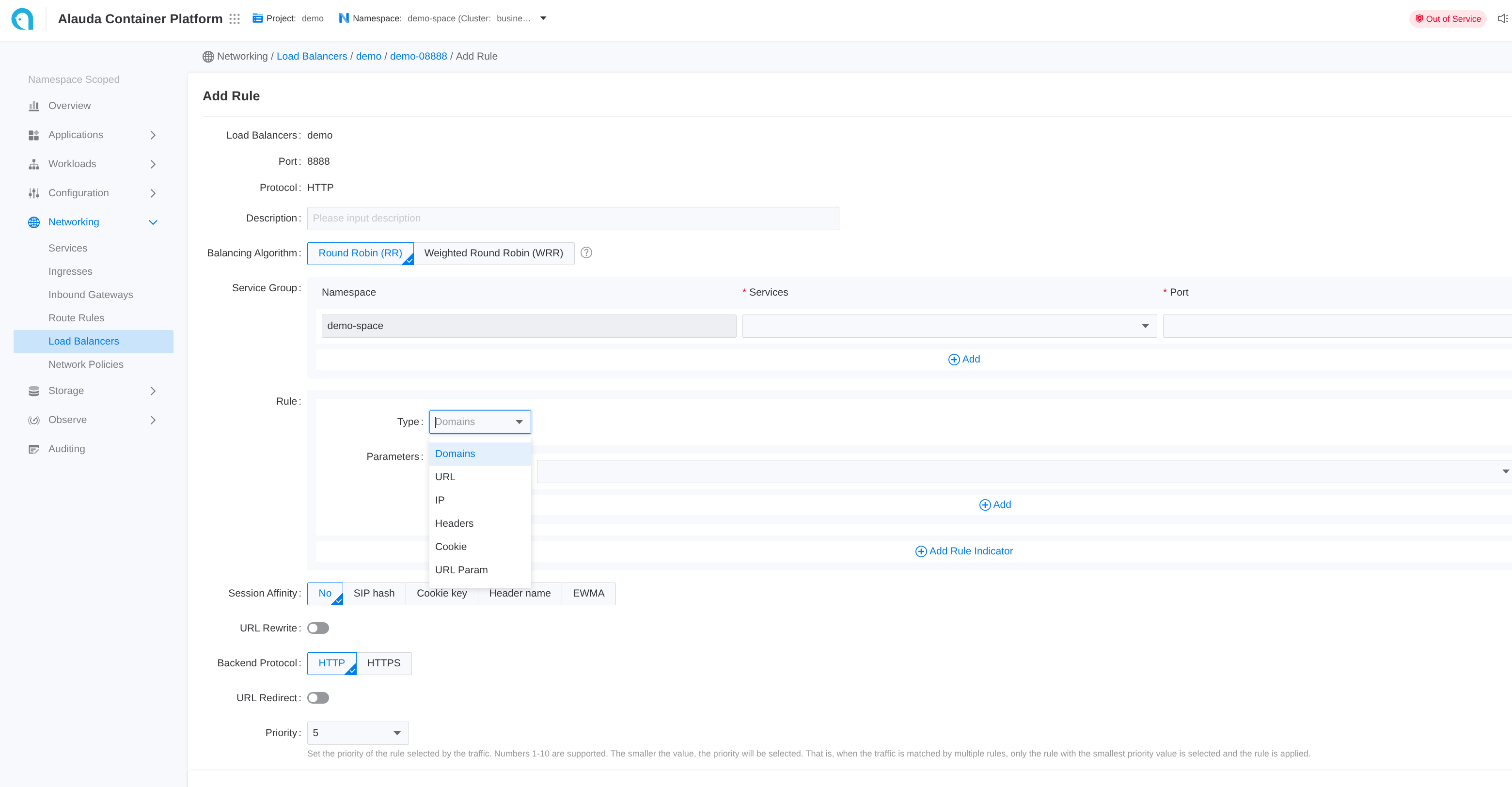
- Go to Container Platform.
- Click on Network > Load Balancing in the left navigation bar.
- Click on the name of the load balancer.
- Select the listener port name.
- Click Add Rule.
- Refer to the following descriptions to configure the relevant parameters.
- Click Add.
Each input item on the webui corresponds to a field of the CR
using the CLI
Https
If the frontend protocol (ft) is HTTPS or GRPCS, the rule can also be configured to use HTTPS.
You can specify the certificate either in the rule or in the ingress to match the certificate for that specific port.
Termination is supported, and re-encryption is possible if the backend protocol is HTTPS. However, you cannot specify a certificate for communication with the backend service.
Certificate Annotation in Ingress
Certificates can be referenced across namespaces via annotation.
Certificate in Rule
In .spec.certificate_name, the format is $secret_namespace/$secret_name
TLS Mode
Edge Mode
In edge mode, the client communicates with the ALB using HTTPS, and ALB communicates with backend services using HTTP protocol. To achieve this:
- create ft use https protocol
- create rule with backend protocol http, and specify cert via
.spec.certificate_name
Re-encrypt Mode
In re-encrypt mode, the client communicates with the ALB using HTTPS, and ALB communicates with backend services using HTTPS protocol. To achieve this:
- create ft use https protocol
- create rule with backend protocol https, and specify cert via
.spec.certificate_name
Ingress
Ingress sync
Each ALB creates an IngressClass with the same name and handles ingresses within the same project.
When an ingress namespace has a label like cpaas.io/project: demo, it indicates that the ingress belongs to the demo project.
ALBs that have the project name demo in their .spec.config.projects configuration will automatically translate these ingresses into rules.
ALB listens to ingress and automatically creates a Frontend or Rule. source field is defined as follows:
spec.source.typecurrently only supportsingress.spec.source.nameis ingress name.spec.source.namespaceis ingress namespace.
SSL strategy
For ingresses that do not have certificates configured, ALB provides a strategy to use a default certificate.
You can configure the ALB custom resource with the following settings:
.spec.config.defaultSSLStrategy: Defines the SSL strategy for ingresses without certificates.spec.config.defaultSSLCert: Sets the default certificate in the format$secret_ns/$secret_name
Available SSL strategies:
- Never: Do not create rules on HTTPS ports (default behavior)
- Always: Create rules on HTTPS ports using the default certificate
Logs and Monitoring
By combining logs and monitoring data, you can quickly identify and resolve load balancer issues.
Viewing Logs
-
Go to Administrator.
-
In the left navigation bar, click on Network Management > Load Balancer.
-
Click on Load Balancer Name.
-
In the Logs tab, view the logs of the load balancer's runtime from the container's perspective.
Monitoring Metrics
The cluster where the load balancer is located must deploy monitoring services.
-
Go to Administrator.
-
In the left navigation bar, click on Network Management > Load Balancer.
-
Click on Load Balancer Name.
-
In the Monitoring tab, view the metric trend information of the load balancer from the node's perspective.
-
Usage Rate: The real-time usage of CPU and memory by the load balancer on the current node.
-
Throughput: The overall incoming and outgoing traffic of the load balancer instance.
-
For more detailed information about monitoring metrics please refer to ALB Monitoring.